Rural Nevada CoC PIT Count App Guide (2026)

Welcome, and thank you for being part of the RNCoC 2026 Point-in-Time Count. This year, we are using Hyperion’s PIT web app (PITCounter) at pitcounter.com to support data collection for the Unsheltered Count, Sheltered Count, and School Count. This guide walks you step-by-step through logging in, using your survey code, completing surveys, and confirming your submissions uploaded successfully.

Table of Contents

Quick Links:

Training Video

Watch the following training video to see a walkthrough of how to operate the pointintime.com site.

Training Mode

The app will remain in Training Mode until the day before the count, allowing all volunteers and leads to learn the survey and test how everything works. 

If the app still says Training Mode before you start the count, please notify WWI using the methods outlined earlier on this page and on the main PIT Count Page. 

Note on Survey Names

The surveys linked to this training and the code in the app are the correct surveys. We are aware that the survey names need updating, we are anticipating having the survey names updated in the next few days, but we prioritized getting the training out so that everyone will have as much time as possible to train on it. 

Step 1: Open the PIT app website

Click the button below to go to the website to sign up

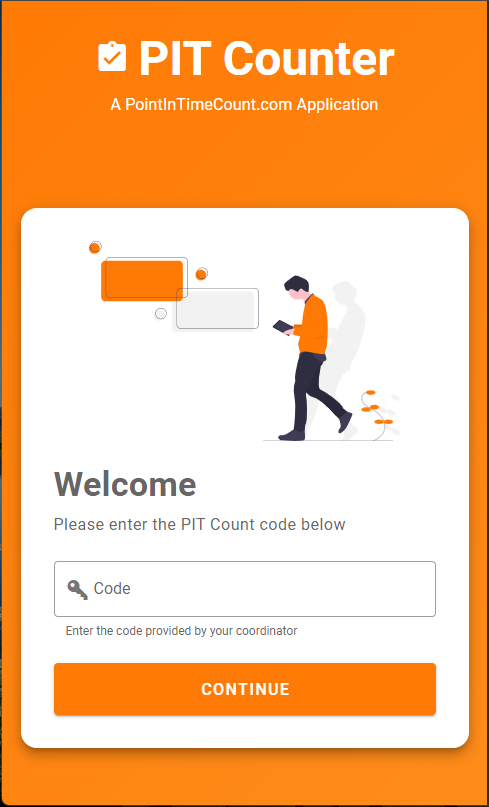
Step 2: Enter your PIT Count code

You’ll enter a short code to access the correct form. You’ll get your code from the PIT organizers.

Codes (2026):

  • Unsheltered & Sheltered Count: S4MN94
  • School Count Survey Code: 9NEJX3

Tip: If your County Lead tells you to switch codes, you can update the code in the Settings tab, but most volunteers won’t need to.

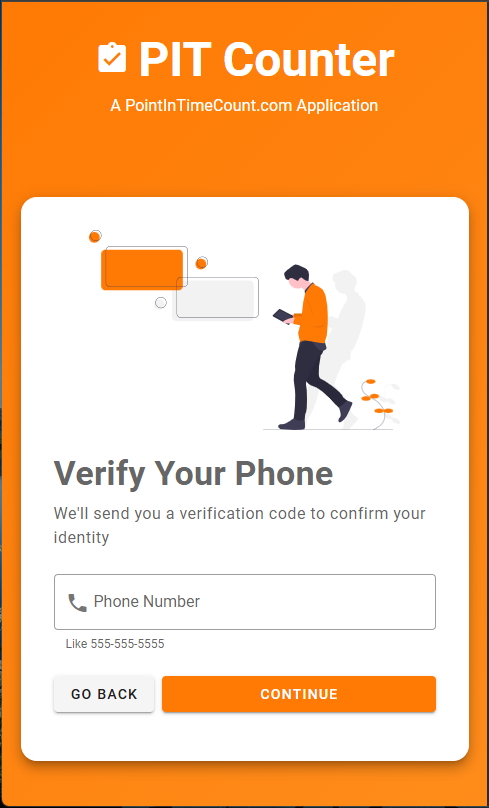
Step 3: enter your phone number (enter phone number)

Enter your Phone Number, tap CONTINUE.

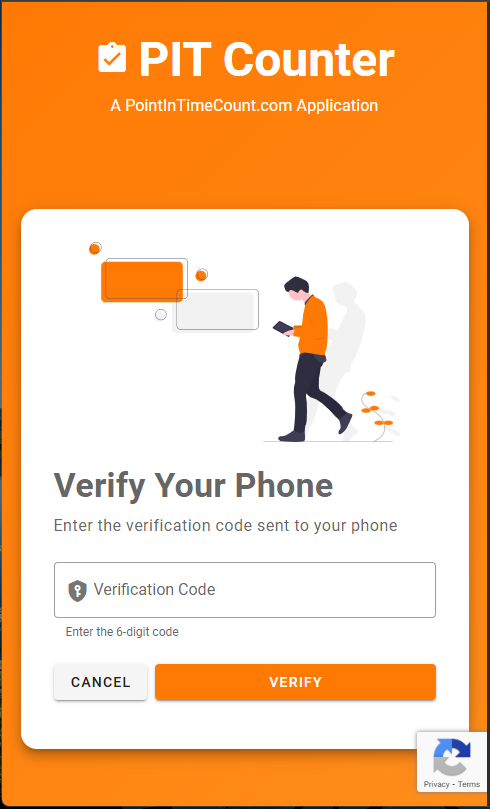
Step 3a: Verify your phone (enter verification code)

Enter your Phone Number, tap CONTINUE.

Step 3a: Verify your phone (enter verification code)

Enter the 6-digit code you receive by text, tap VERIFY.

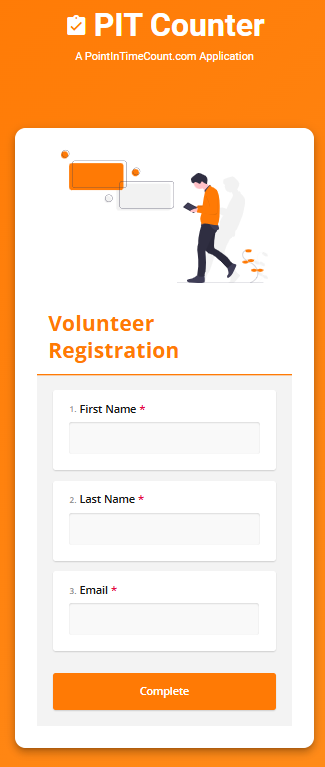
Step 4: Complete Volunteer Registration

Fill in First Name, Last Name, Email, tap Complete.

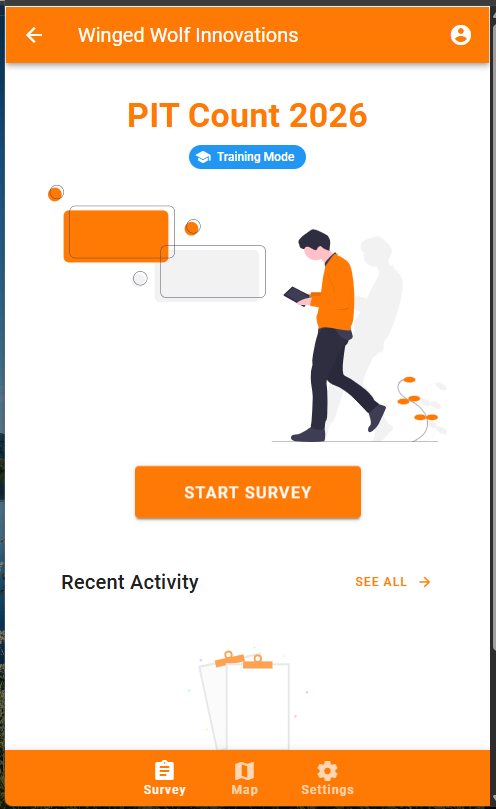
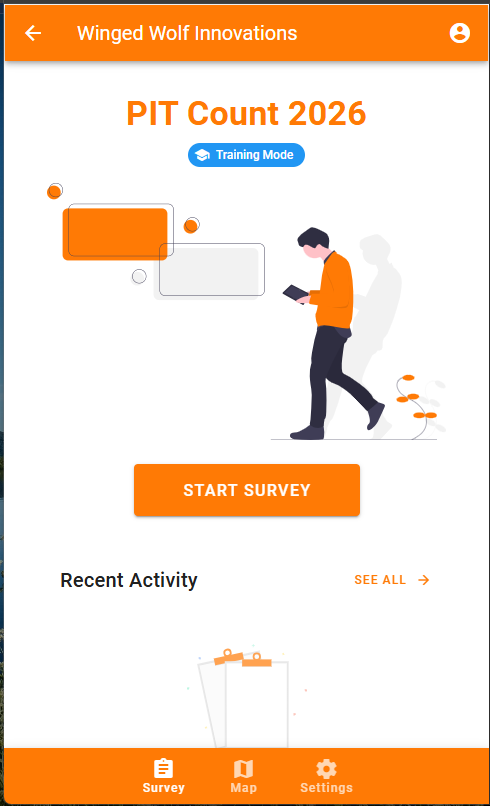
Step 5: You land on PIT Count 2026 (home screen)

You should see PIT Count 2026 and the START SURVEY button.You should see PIT Count 2026 and the START SURVEY button.

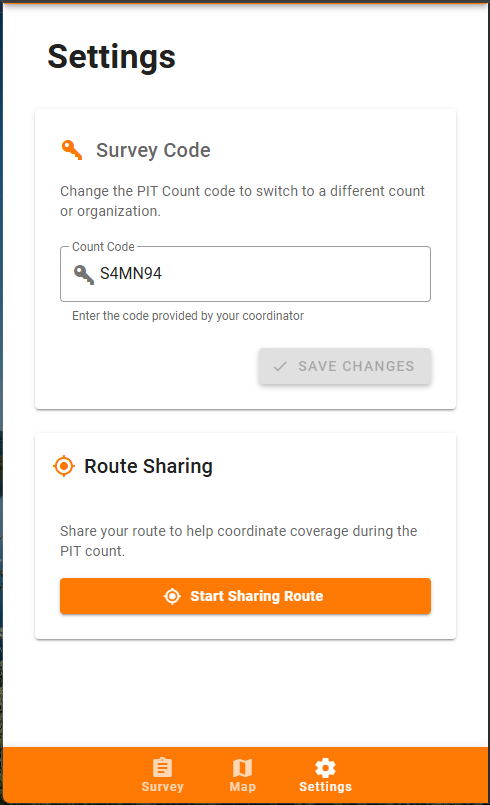
Step 6: Open Settings ➡️ Click Start Sharing Route

Tap Settings (bottom menu).

  • Survey Code is shown here (and can be changed only if instructed).

  • Route Sharing is started here.

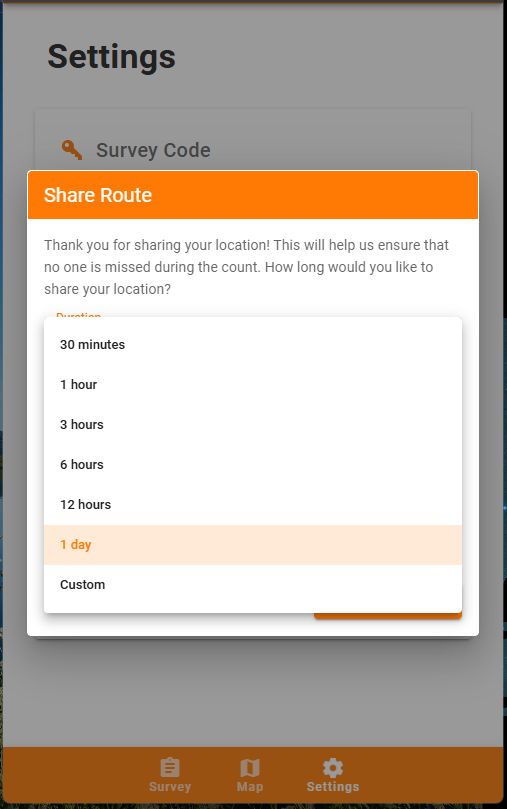
Step 7: Choose how long to share

Please click 1 day as the duration time. 


Note: 

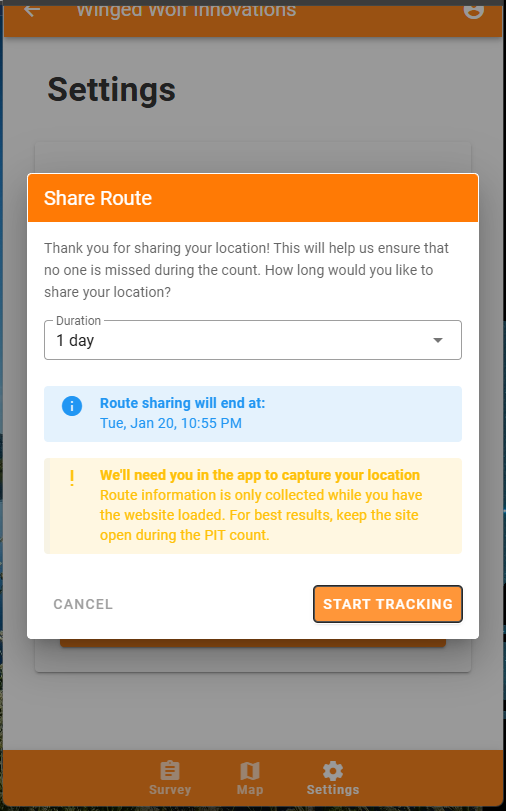
  • Location is only shared while you have the website open
  • You can turn off location sharing as soon as you are done with the count.

Step 8: Start Tracking

Tap START TRACKING.

Count-night Survey Flow

Step 9: Start The Survey

Return to the Survey tab (bottom menu) and tap START SURVEY.

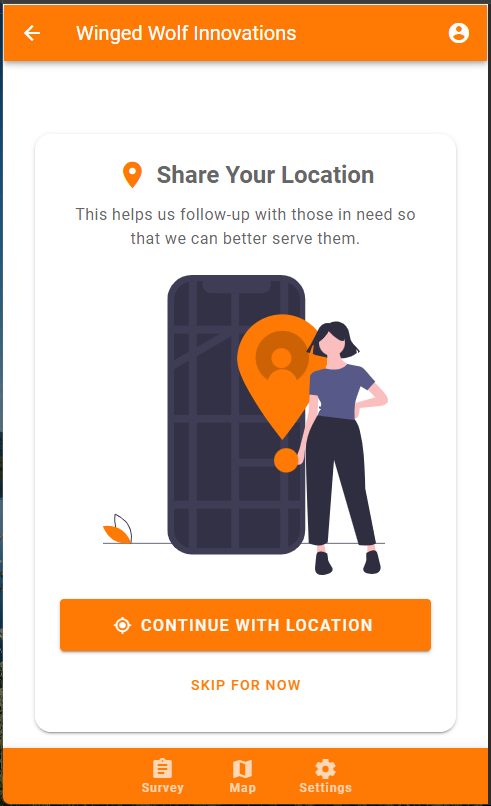
Step 10: Share Your Location

Tap CONTINUE WITH LOCATION

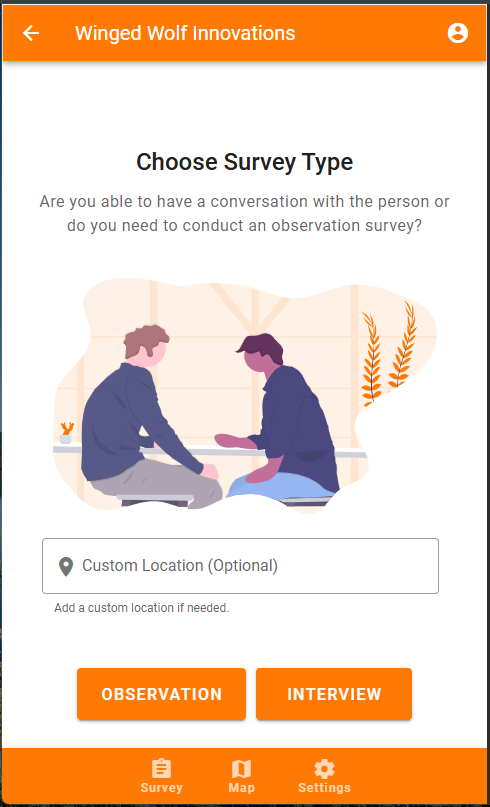
Step 11: Choose Survey Type + Optional Location Landmarks

Custom Location is where you can put any landmarks for future outreach engagement


When to choose each survey:

  • Interview: If you can speak to the person, do an interview. This gives us the best data possible.
  • Observation: If you cannot interview (refusal, language barrier, safety, or do not want to disturb someone sleeping)

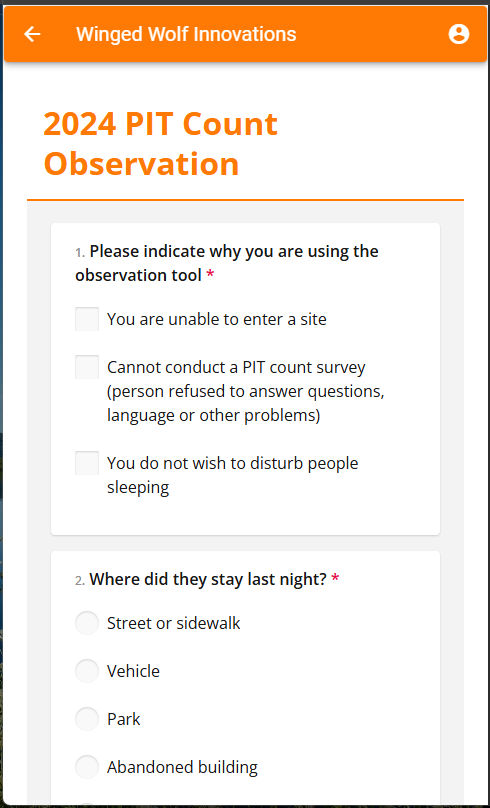
If You Conduct An Observation Survey

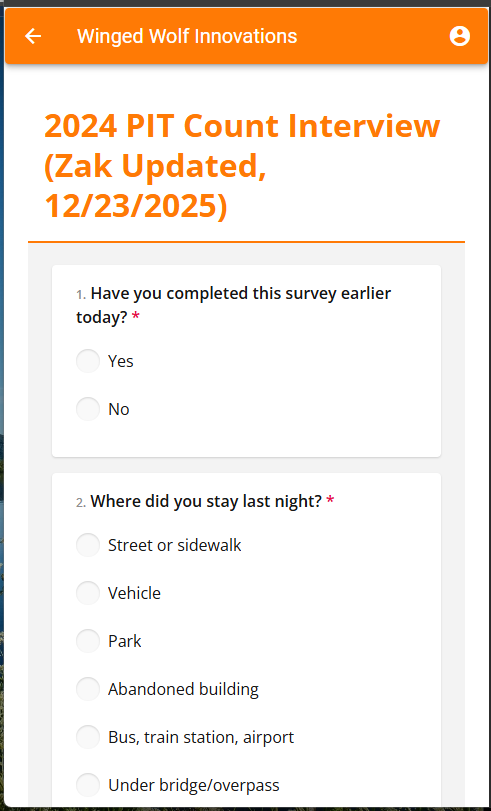
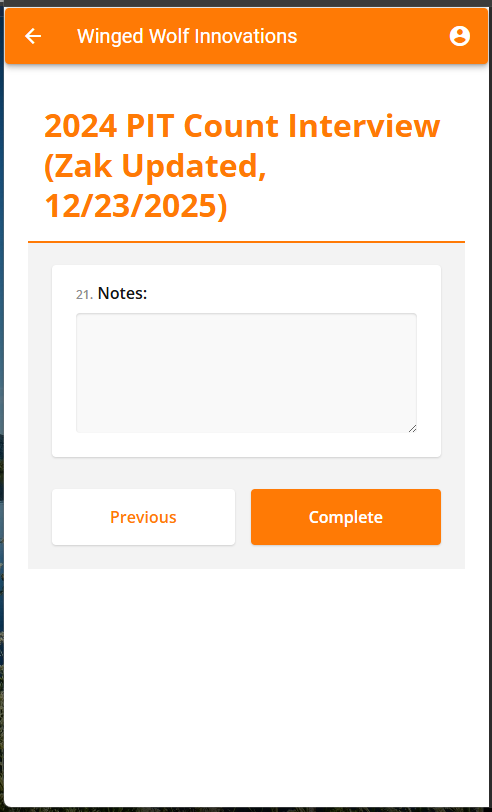
Step 12: Complete All The Questions You Can For The Survey

Step 13: Additional Members of the Household & Submit

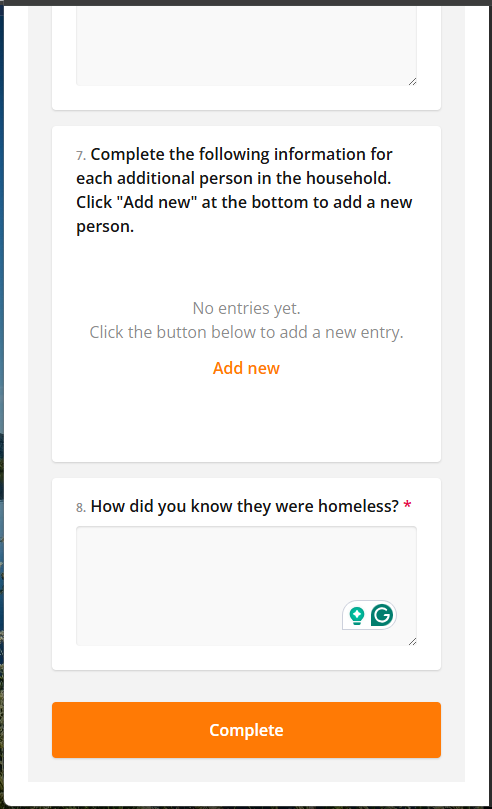
When you reach the end of the survey, if there are additional members of the household, you will click add new and continue surveying. 

If the entire household is surveyed, click complete. 


Note: A household is defined as a family or group living in the same space (e.g., sharing a tent)

Step 14: Submission Confirmation

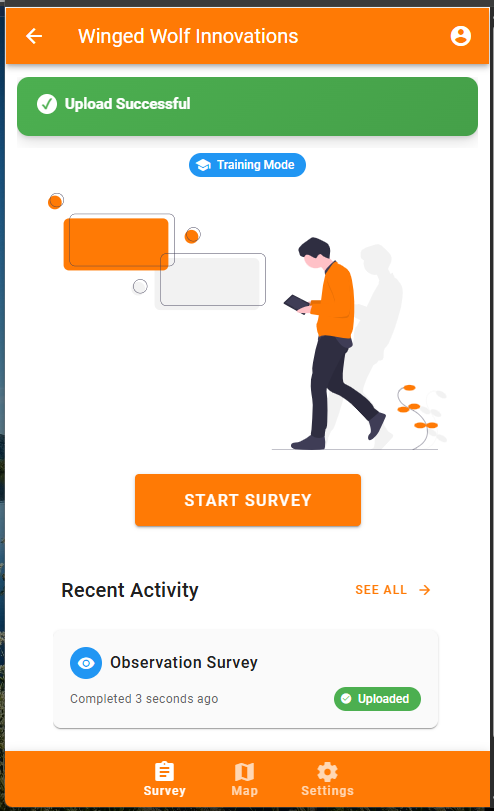
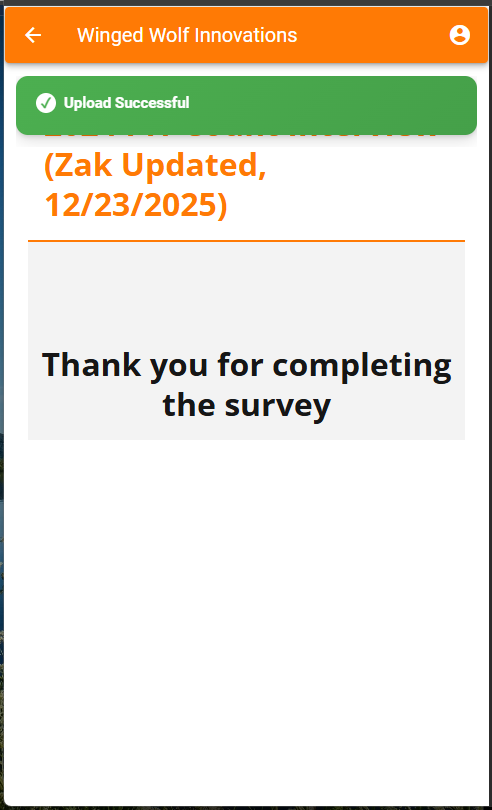
Confirm you see Upload Successful and the entry shows Uploaded under Recent Activity.

If You Conduct An Interview Survey

Step 12: Complete All The Questions You Can For The Survey

Step 13: Additional Members of the Household & Submit

When you reach the end of the survey, if there are additional members of the household, you will click add new and continue surveying. 

If the entire household is surveyed, click complete. 


Note: A household is defined as a family or group living in the same space (e.g., sharing a tent)

Step 14: Submission Confirmation

Confirm you see Upload Successful and the entry shows Uploaded under Recent Activity.

Frequently Asked Questions (FAQ)

What is the Point-in-Time (PIT) Count?
The PIT Count is a HUD-required snapshot of how many people are experiencing homelessness, both sheltered and unsheltered, on a single night during the last 10 days of January. 


When is the 2026 PIT Count?
Count activities for 2026 begin Thursday, January 29, 2026, with teams starting as early as 4:00 AM. Your county team will share the exact meeting time and location for your assignment.


Why do all Nevada CoCs count on the same date?
Nevada’s CoCs coordinate on the same statewide date to help reduce the chance of duplicate counts across regions.


Who is included in the PIT Count?
The PIT Count includes people staying in shelters and people staying outdoors or in places not meant for habitation. 


Do I need experience to volunteer?
No. Volunteers are provided orientation and guidance, including safety, privacy, respectful engagement, and how to complete surveys/observations. 


What will I actually be doing as a volunteer?
Volunteers deploy in coordinated teams to help complete surveys and observations at shelters and in outdoor locations where people may be staying, your role depends on your county’s plan and team assignment. 


How does RNCoC collect PIT Count information?
RNCoC uses Hyperion to support consistent data collection in the field, and we also provide paper backups in areas with limited cell coverage. 


Does Hyperion work if I don’t have cell service?
Yes, Hyperion is designed to continue working offline after the first time it’s loaded on your phone, submissions automatically upload when service returns. 


Is Hyperion secure, and who can see the data?
Hyperion is built so volunteers can only see basic info about the surveys they submitted, submission data is accessible to assigned administrators, and data is transmitted using TLS (encrypted in transit). 


Will Hyperion collect a location?
Hyperion can capture the volunteer’s location with each submission so administrators can see where surveys are being completed for coordination and coverage. 


Can Hyperion be used for the sheltered count too?
Yes. Hyperion supports both sheltered and unsheltered surveys, and it can sort sheltered data by emergency shelter, transitional housing, or safe haven. 


What if my surveys aren’t uploading?
First, confirm the device is connected to the internet (cell data or Wi-Fi). If it still doesn’t upload, Hyperion includes a manual upload option from the survey history area, and there is an “escape hatch” option if needed for rare cases. 


What if I don’t have a smartphone (or I’m not comfortable using one)?
That’s okay, we can provide alternatives in many areas (including paper backups where needed). Contact the PIT team and we’ll match you to a role that fits. 


How do I sign up, and when will I get my assignment?
Use the sign-up links on this page (Volunteer, Local Lead, or County Lead). Assignments and meeting details are shared closer to Count Night based on county planning and volunteer availability.


Contact

Have questions about time commitments, safety, what to expect, or how teams are organized? Start with the FAQ below, and if you still need help, reach out and we’ll connect you with the right county point of contact.

Lorem ipsum dolor sit amet, consectetur adipiscing elit. Ut elit tellus, luctus nec ullamcorper mattis, pulvinar dapibus leo.

Follow us